Choose software together with your launch monitor and computer. A product name alone does not establish compatibility: the hardware model, operating system, license tier, connector and intended use all matter.
| Software | License and platform considerations |
|---|---|
| GSPro | Annual subscription for Windows PCs. Verify the exact launch monitor integration and any separate manufacturer subscription. Online tour membership can be a separate purchase. |
| Awesome Golf | We list a lifetime membership. The developer ties the license to a supported launch monitor, with supported desktop and mobile platforms. Check that your exact monitor and device are supported. |
| E6 by TruGolf 2026 | Subscription software for Windows PC. Tier controls included features. This is distinct from E6 CONNECT and has different hardware requirements. |
| E6 CONNECT | License and subscription options vary by integration. A PC license is not automatically an iOS license. Confirm the exact entitlement supplied with your order. |
| Creative Golf | Confirm the edition before buying. Creative Golf Advanced replaced older offerings; an older one-time license can require a paid upgrade. Requirements from different editions should not be mixed. |
| Simulator Golf Tour | Annual online-tour membership used with GSPro. It is not a standalone replacement for the simulator software. |
GSPro specifies Windows 10 or 11, and its recommendations differ for 1080p and 4K. E6 2026 currently specifies Windows PC, an Intel i7 10th generation or newer, 24GB RAM, an RTX 3060 with 12GB VRAM or better, and NVMe storage. Verify current requirements before selecting a computer.
Do not infer performance from a graphics-card family name alone. Mobile and desktop GPUs differ, and extra displays or swing cameras add requirements. Match the exact computer configuration to the current software documentation.
A successful hardware benchmark does not establish that software is included with the computer or that every launch monitor will connect. Verify licenses separately from hardware performance.
Contact Cornerstone Golf with your monitor, computer and intended software before ordering an uncertain combination.
Reviewed October 30, 2026. Requirements and license terms can change; follow the current manufacturer documentation.
Keep reading
Most launch monitors are built for a room. Hit outdoors on a real range and the list gets a lot shorter. Here...
Read the guide
Radar or camera comes down to your room, not your budget. Plain-English explanation of which one fits the space you actually have.
Read the guide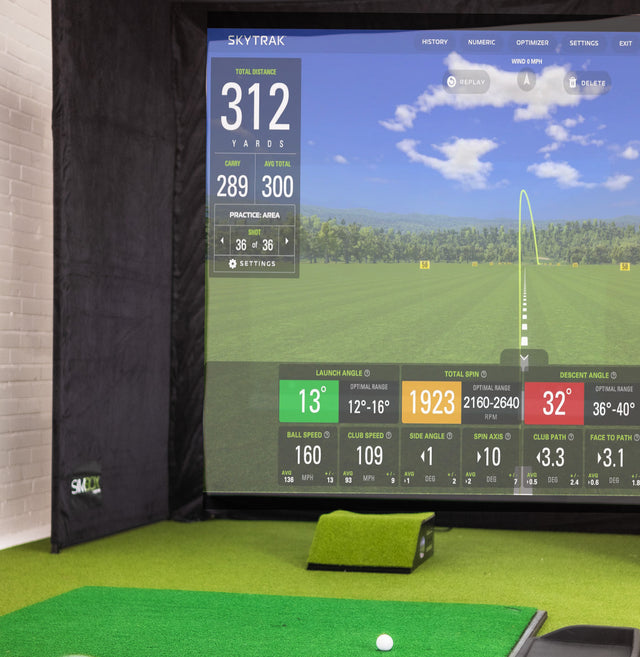
Yes, but not the way most people think. What a simulator actually fixes in your game, and the parts it will not...
Read the guideShop the gear
Not sure what fits your room?
Send me your ceiling height, width and depth and I will tell you what works. Free, whether you buy from me or not.